 Build faster with AI — Get started with the Nium MCP Server
Reports
Reports in Nium Portal are designed to enhance your financial management experience by providing detailed insights into your transactions. With Nium Portal, you can easily track, analyze, and manage your financial activities.
Transactions reports
The Transactions reports page offers a comprehensive view of all your financial transactions. You can filter and search transactions by transaction ID or the batch ID. You can further refine your view by different details about the transactions, including:
- Status: View transactions based on their current status including Approved, Declined, Blocked, etc.
- Type: Filter transactions by their type, including
- Currency: See transactions sorted by the currency used, helping you efficiently manage multi-currency accounts.
- Payout status: Filter transactions based on it's current progress. Available values include:
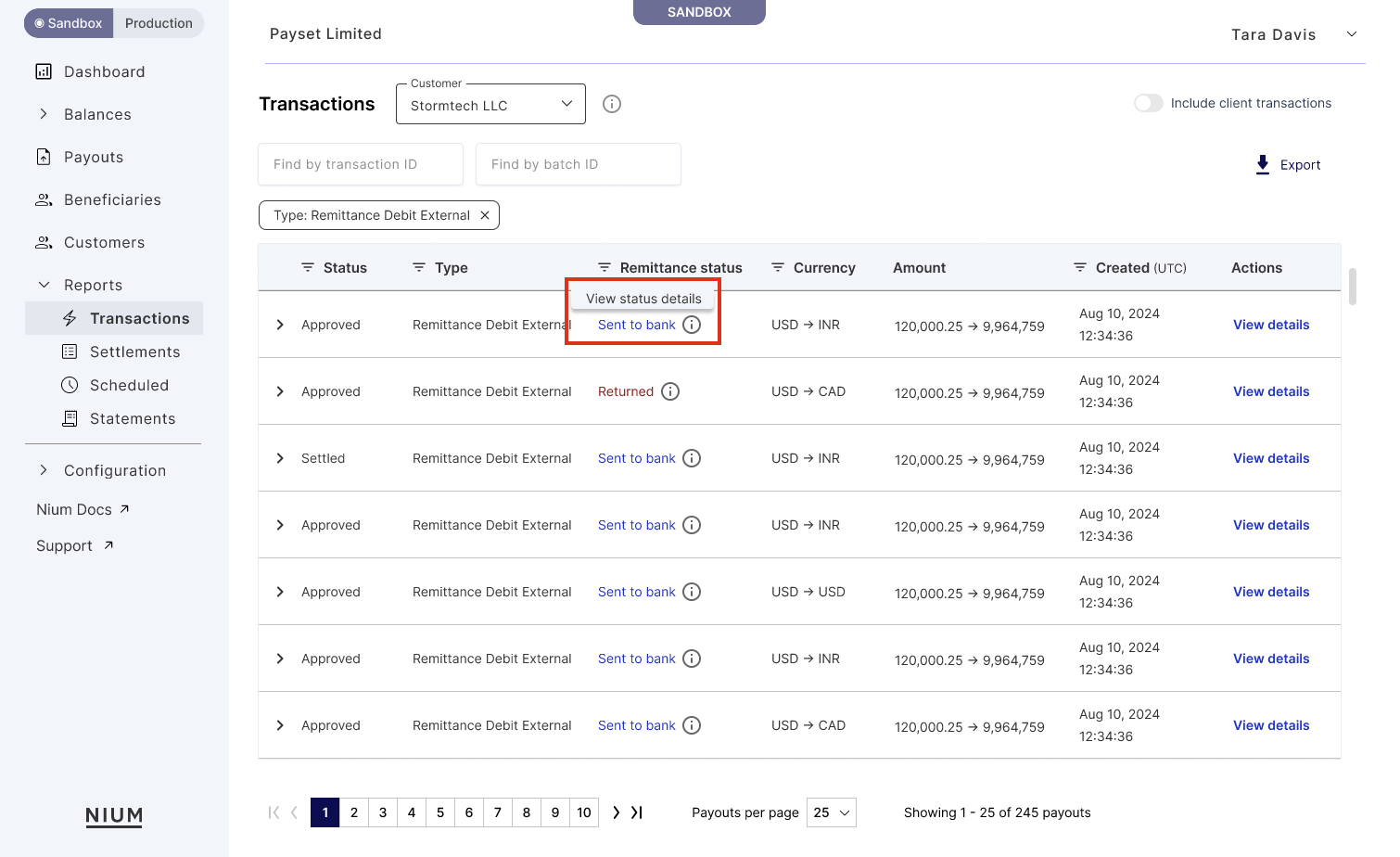
- Sent to bank: The transaction has been processed and sent to the bank for settlement.
- Returned: The transaction was not completed and has been sent back, often due to issues like incorrect banking details or insufficient funds. Click on Returned for more details on why the transaction was returned.
Additional filters include:
- Customer: Filter transactions by the customer to focus on the activity of a specific user or business. This is helpful when reviewing transaction history for a particular client or when investigating transaction issues.
- Date range: Select a specific time period to view transactions that occurred within that window. You can choose from pre-set ranges like "Last 30 days" or define a custom range.
- Transaction ID: Search for a transaction using its unique identifier. This is useful when tracking or troubleshooting a specific transaction.
- External ID: Filter using your own system's reference ID if you're passing an
externalIdwhen creating transactions. This helps map Nium transactions to your internal records. - Batch payout: View transactions that are part of a bulk payout. Use this to track the status of all payouts made in a batch and confirm successful processing of each.
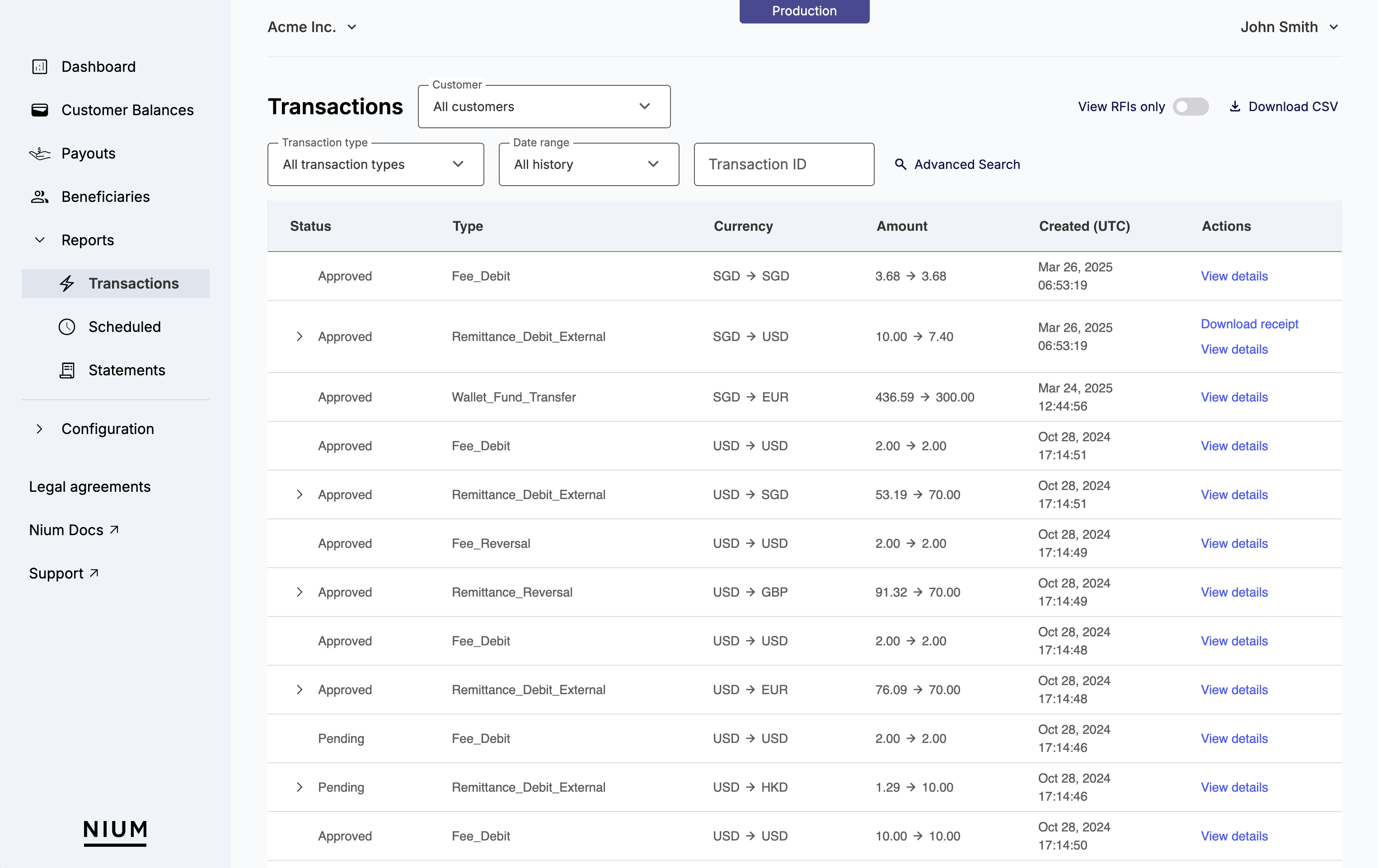
With your transactions laid out in Nium Portal and available for easy review, your business can:
- Monitor Pending Transactions: Quickly identify and review transactions that are still pending.
- View Transaction Details: Access detailed information about each transaction, including the amount, currency conversion, and creation date.
- Respond to transactions with Requests for Information (RFI): Easily manage and respond to any RFIs related to any of your transactions.
The Transactions reports page ensures you have full visibility and control over your financial operations, enabling you to make informed decisions and maintain accurate records.
Payout transactions reports
When you filter the Transaction reports page for payouts, two additional columns appear:
- Remittance Status: Details the specific state of the payout in its lifecycle. This is different from the overall transaction status (pending, approved, etc.) and provides a detailed view of the payout process. For more information, see Transaction Lifecycle.
- Beneficiary Name: Shows the name of the beneficiary receiving the payout. This allows you to quickly identify who the payout is intended for.
These additional columns give you more granular information about each payout transaction and help you manage those transactions more effectively. By using Transaction reports to manage payouts, you can:
- Monitor Remittance Status: Track the exact stage of each payout, ensuring timely and accurate processing.
- Identify Beneficiaries: Easily see who is receiving each payout, aiding in verification and record-keeping.
This additional information helps ensure you have a detailed understanding of the payouts you process and enables you to manage your financial operations with greater precision.
Responding to RFI transactions
The Transactions reports page enables clients to easily view and respond to transaction RFIs (Requests for Information), streamlining the RFI process and reducing dependencies on APIs or external communication.
The Nium Portal Transactions reports page simplifies handling RFIs by providing a no-code alternative that does not consume any developer resources. This ensures quicker responses and faster resolution of flagged transactions. Any authorized client team members can respond to RFIs directly from Nium Portal.
Additional key benefits of using Nium Portal to respond to RFIs include:
- Inline RFI Responses: Respond directly to RFIs within Nium Portal; clients can filter transactions requiring RFIs and respond directly within the portal. This helps both unblock clients and helps them process transactions more quickly.
- No API integration required: Respond directly to RFIs without needing to integrate or connect with our API. You also avoid any delays that can arise due email or Slack communication with support teams.
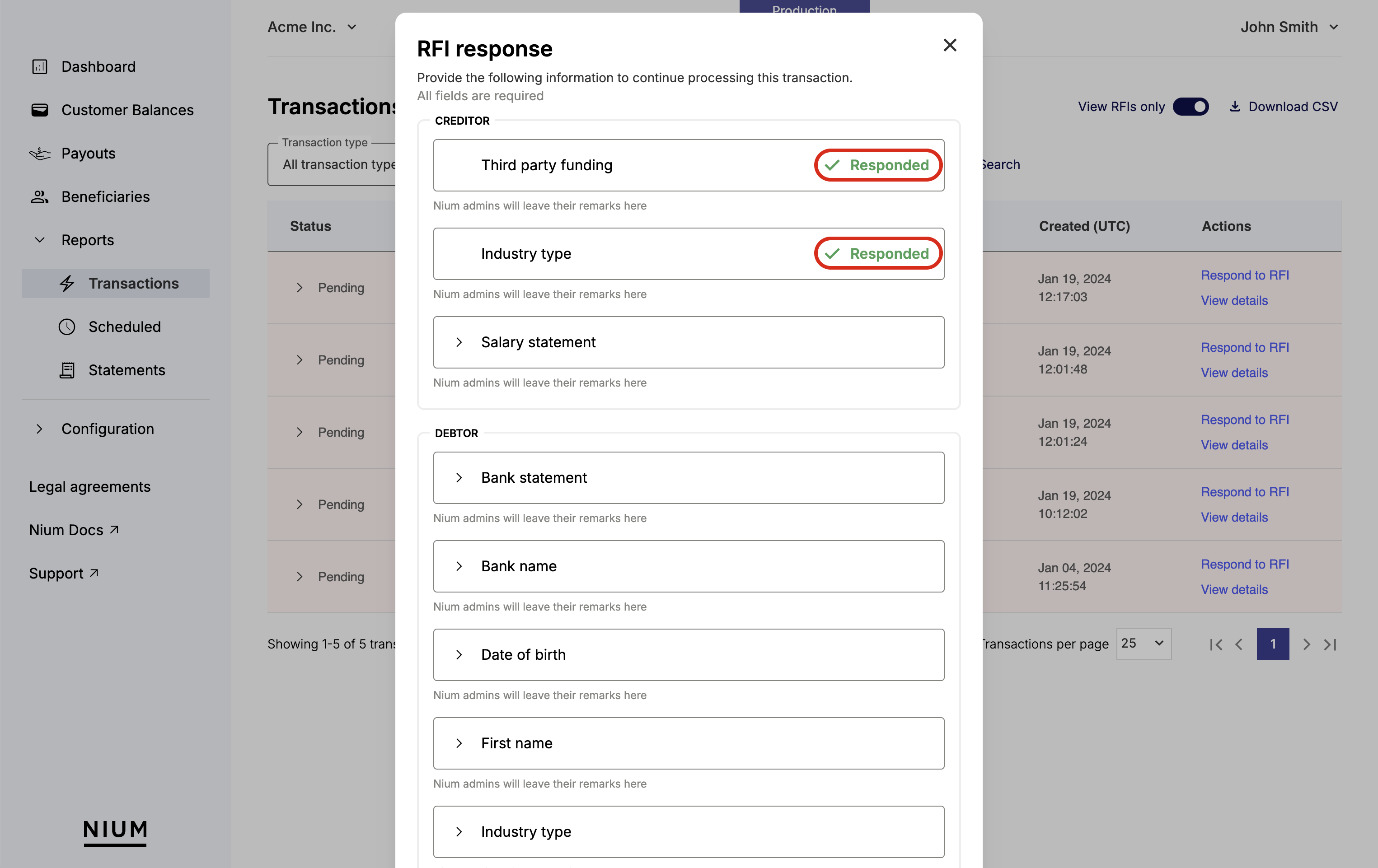
- Creditor/Debtor Separation: As you work through the different RFIs, for accuracy and clarity, clearly distinguish between the information of the creditor compared to the information of the debtor.
Use Nium Portal to respond to RFIs
To respond to RFI transactions on the Reports page:
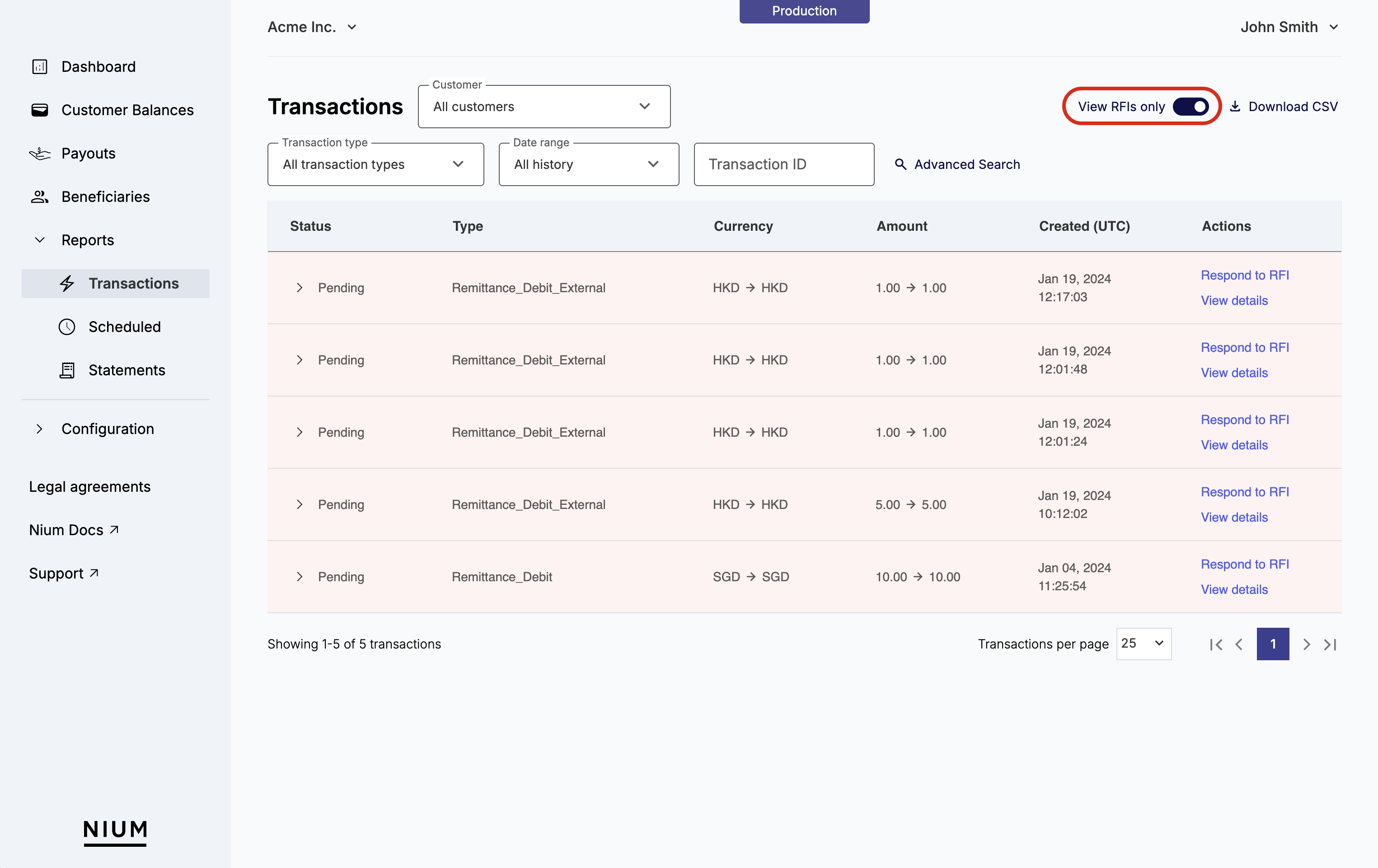
- Click Reports > Transactions on the left.
- Click View only RFI transactions to view all transactions flagged with the
statusRFI_REQUESTED.
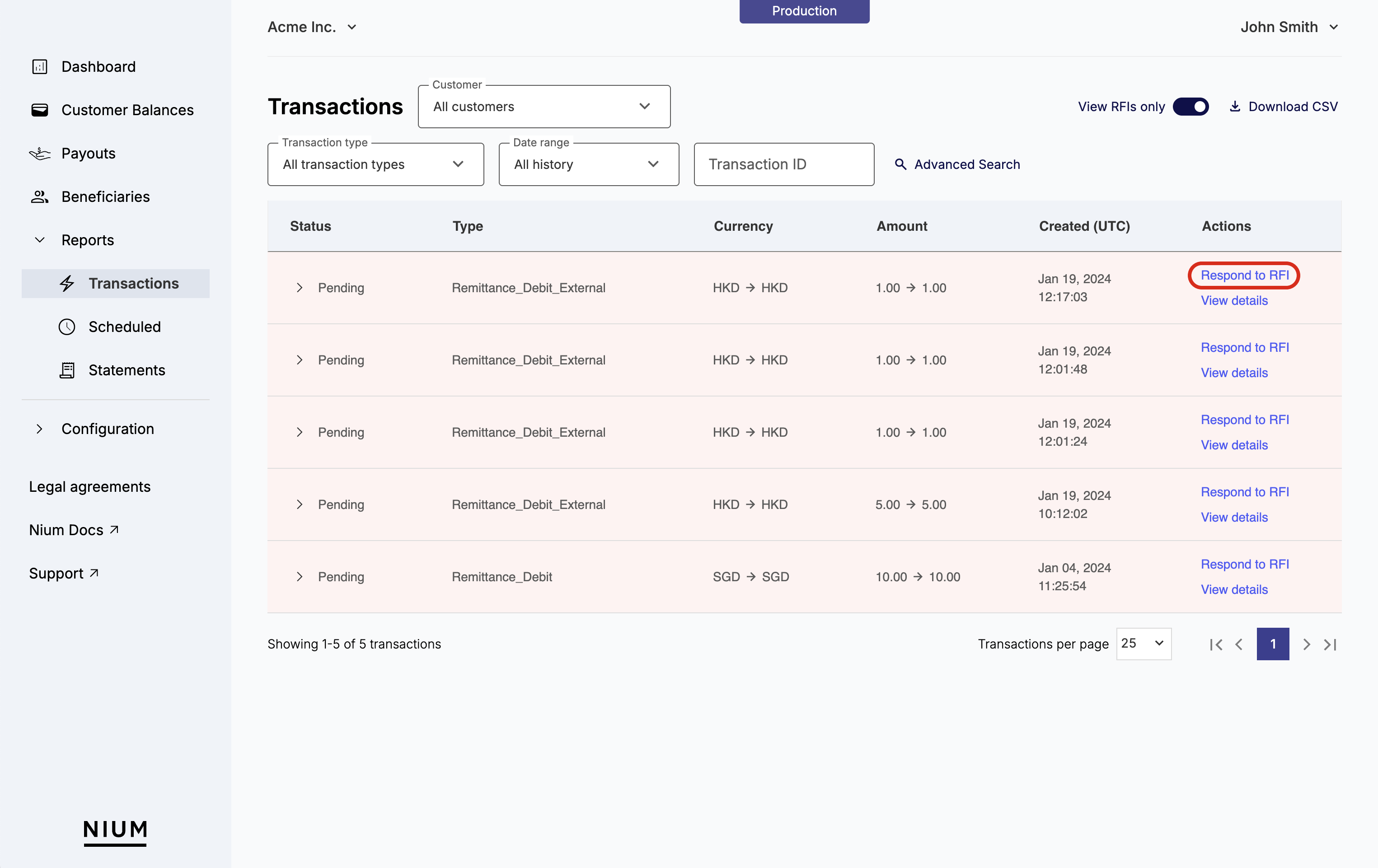
- Click Respond to RFI next to the transaction entry you want to address.
- Fill in the required fields and upload the necessary documents.
- Fields that are successfully completed are marked as Responded with a green checkmark.
- Previously submitted RFI data is saved, helping you track which transactions need action.
- When a document upload is requested, the following limitations apply:
- File format: JPG, JPEG, PNG, or PDF
- File Size: 5MB maximum
- Once submitted, the
statusof the transaction updates to a pending state until our compliance team completes their review of the submitted information. Updates to transaction status are provided via webhook events anytime there is a status change. For more information about our different webhook events, see Webhooks - Overview.
For more technical information on RFIs and how they come up, see:
By leveraging Nium Portal to respond to RFIs, clients can speed-up transaction processing, ensure smoother operations, and avoid any unnecessary technical complexities.
GPI details
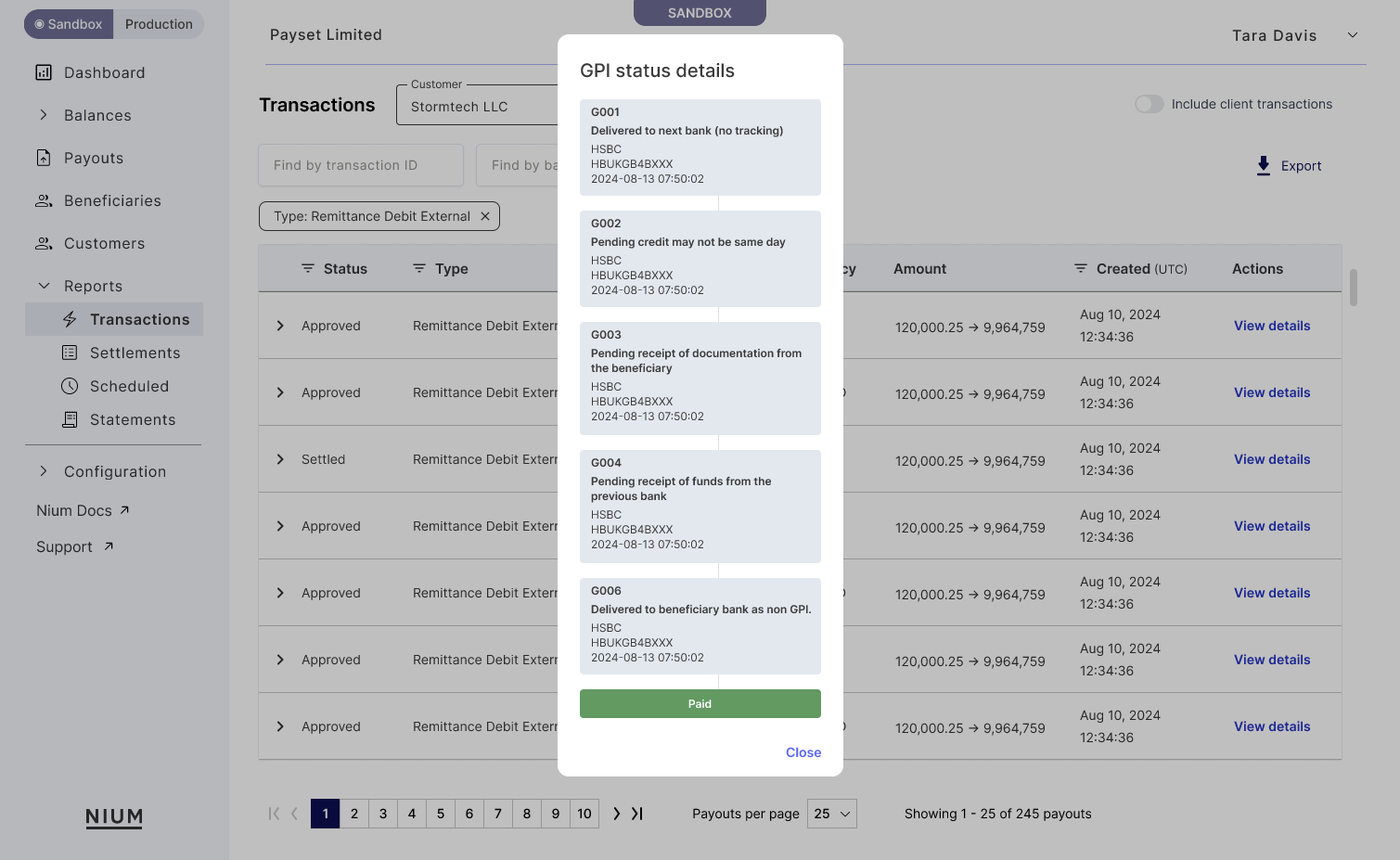
Global Payments Innovation (GPI) provides real-time tracking and transparency for cross-border payments made through the SWIFT network. With Nium Portal, you can review these GPI details in-depth to gain better transparency on your international transactions. GPI details helping you monitor and manage payments with greater confidence.
To review GPI details for SWIFT transactions, hover over the Remittance status and click View status details.
Key GPI details available include:
- Stage Code: Details the current phase of the transaction. Each code, such as
G001,G002, etc., corresponds to an update to the transaction, providing a clear view of the payment's progress. - Stage Description: A brief explanation of the transaction's current condition. This description gives insights into the payment's journey, such as whether it has been delivered to the next bank, is pending credit, or requires further documentation.
- Bank Name: The name of the financial institution currently handling the transaction. Knowing the bank involved at each stage helps you track where the payment is and who is responsible for the next action.
- SWIFT Code: The unique SWIFT/BIC code identifying the bank involved in the transaction stage. This code helps confirm the bank’s identity, providing a reliable way to ensure that the payment is routed correctly.
- Timestamp: The exact date and time when the stage update occurred. The timestamp shows when the transaction reached each specific step, offering insights into processing times and helping to identify any potential delays.
Scheduled reports
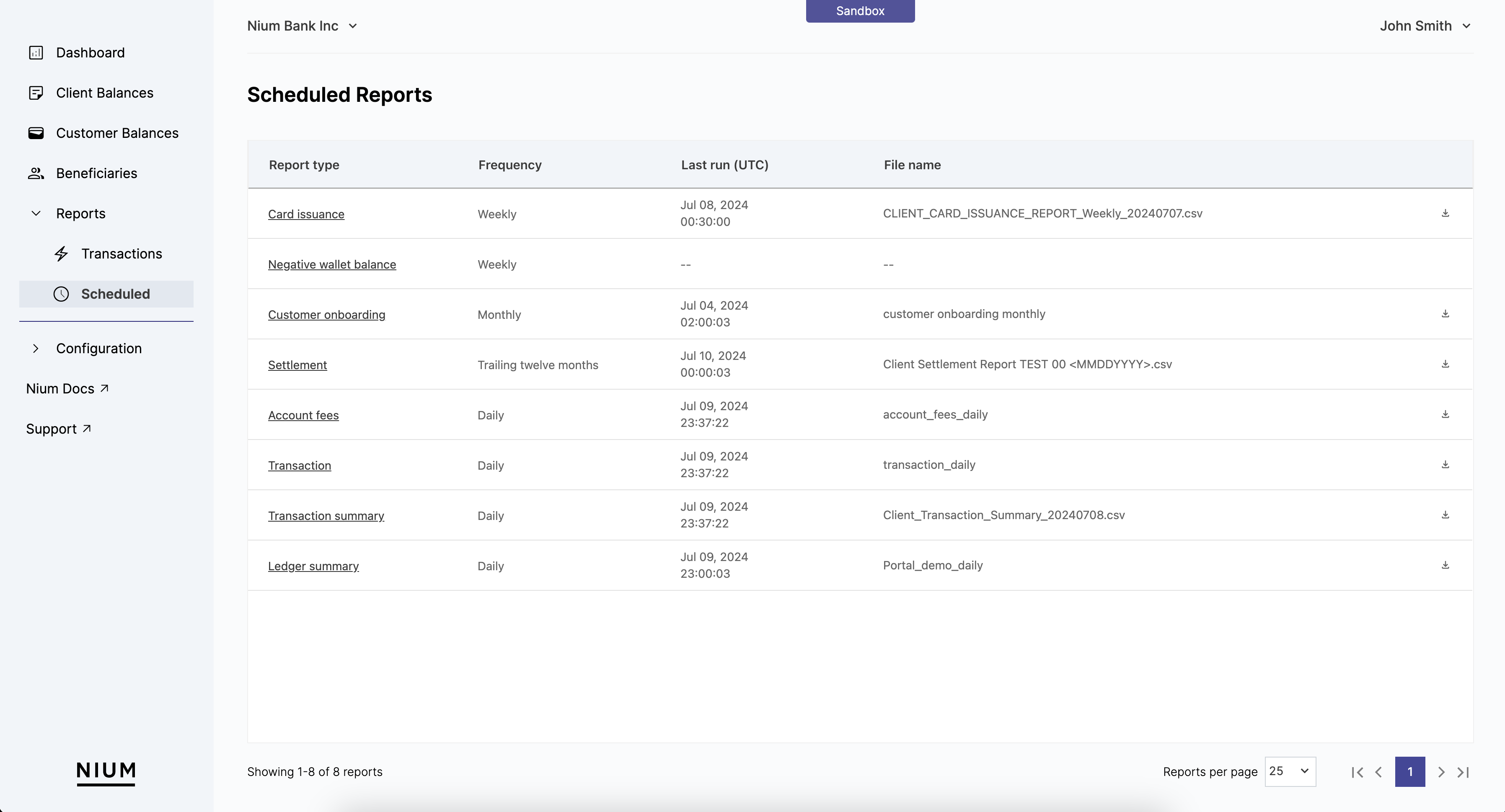
The Scheduled reports tab allows you to automate the generation and delivery of various financial reports.
Scheduled reports help you maintain regular oversight and compliance an gets rid of the need to manually generate reports. To schedule a report, click New report:
- Report Type: Choose from a variety of report types to match your needs. For more details on the different report types, see Scheduled report types.
- Frequency: Set the frequency of how often the report will get generated (daily, weekly, monthly, or trailing twelve months.
- Generation Time: Set what time to generate the report.
- File Name and Delivery: Specify the file name and delivery method, including optional SFTP details, and PGP key.
All previous reports generated are available by clicking through the different pages on the Scheduled reports tab.
Scheduled report types
Understanding the different types of scheduled reports available can help you choose the right ones for your business needs:
| Report Type | Description |
|---|---|
| Negative Wallet Balance | Provides a summary of accounts with negative balances, helping you manage potential risks, understand which customers to reach out to, and take corrective actions. |
| Transaction Summary | Offers a detailed overview of all transactions within the selected period, allowing you to track and analyze financial activities comprehensively over a specific period of time. |
| Assigned Cards | Lists all the cards assigned to users, including their status and usage details, ensuring you have up-to-date information on the cards you've created. |
| Card Transaction Authorization | Details the authorizations made on cards, including successful and failed attempts, to help you monitor card usage and security. |
| Card Issuance | Summarizes the cards you've issued, providing insights into how your business is managing cards. |
| Customer Onboarding | Summarizes the onboarding status of customers, highlighting key metrics and statuses to help you streamline the onboarding experience. |
| Card Activity Summary | Provides a summary of card activities, including transactions and usage patterns, enabling you to understand card performance. |
| Account Fees | Lists the fees charged to accounts, helping you keep track of revenue and cost management. |
| Transaction | Offers a detailed view and breakdown of the transactions you've processed, giving you granular insights into individual financial movements. |
| Settlement | A daily report designed to help your reconcile all the transactions you've processed. |
By leveraging these Scheduled reports, you can automate routine tasks, ensure accuracy, and maintain a high level of financial oversight with minimal effort.
Statements
The Statements tab provides monthly account statements helping you track your account activity, reconcile transactions, and maintain accurate financial records. These statements summarize your account balances, credits, and debits, providing a clear snapshot of your financial position at the end of each month.
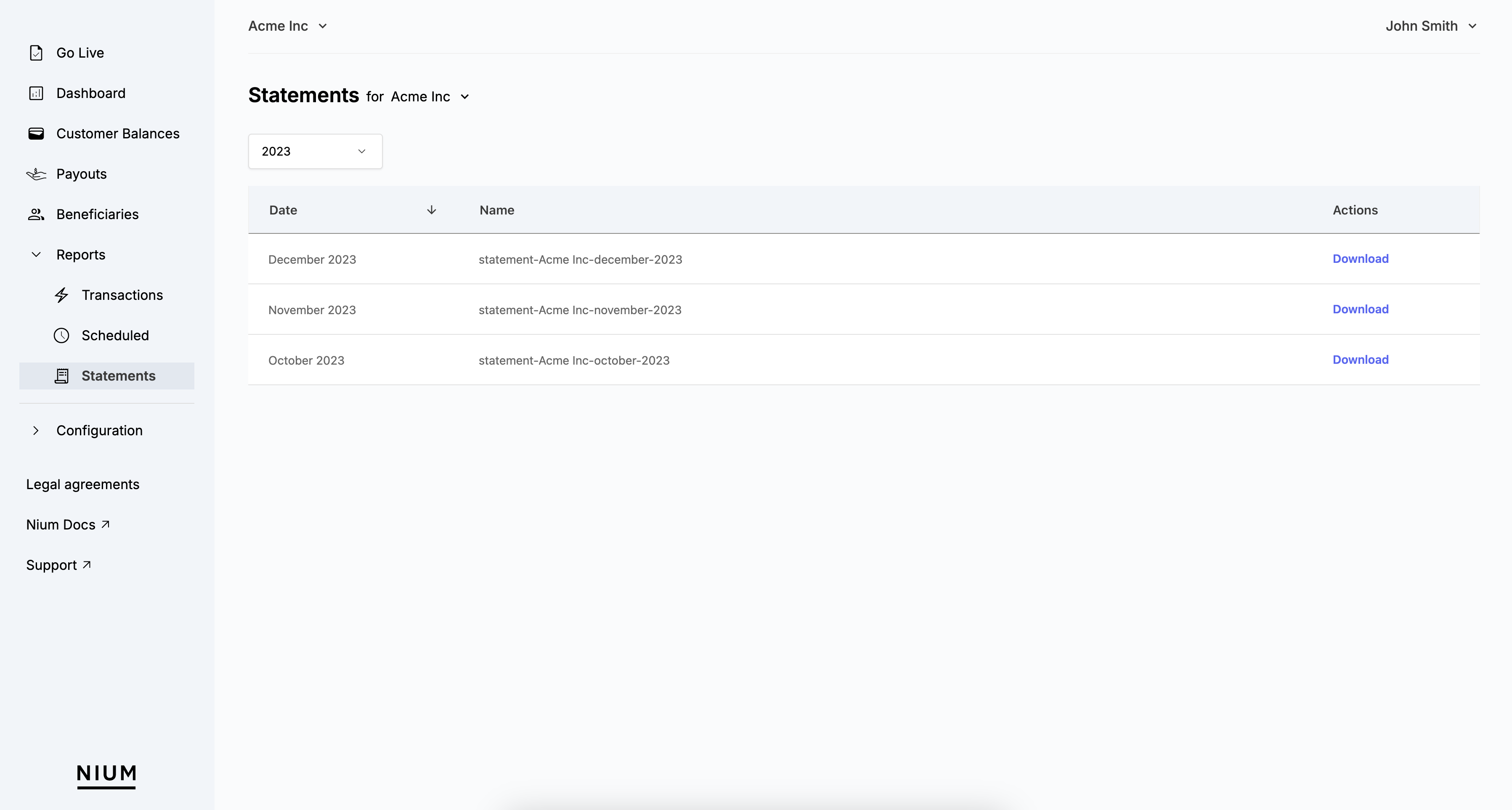
Each statement is available as a downloadable PDF and includes:
Regularly reviewing your statements ensures accurate financial reporting and helps you quickly identify discrepancies, unauthorized transactions, or unexpected charges.
Balance summary
The Balance Summary page provides a high-level overview of your account balance across different currencies and wallets. This section helps you verify your opening and closing balances, track credits and debits, and ensure accurate reconciliation.
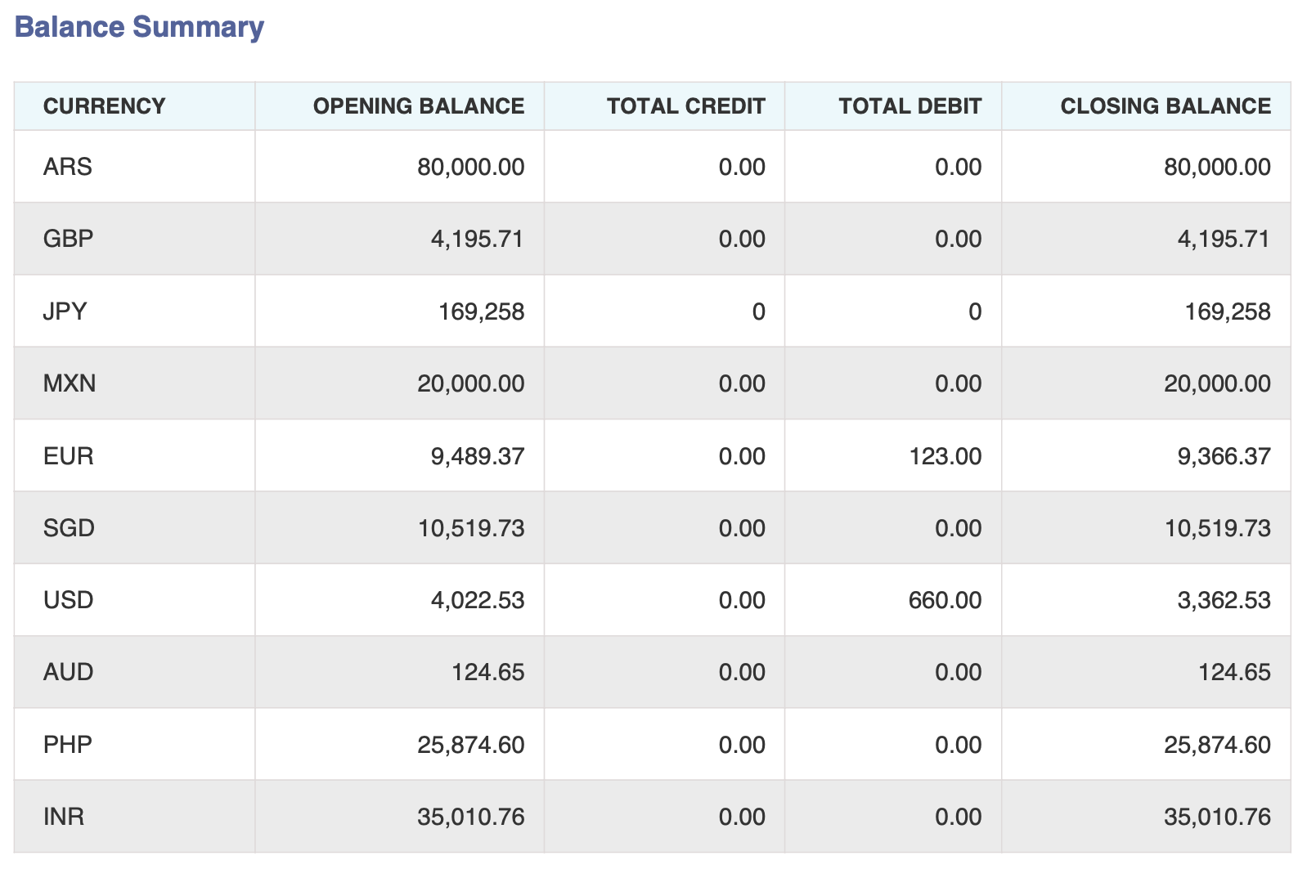
Details available on the balance summary page include:
| Column | Description | Example |
|---|---|---|
| Currency | The three-letter ISO-4217 currency code for the balance. | USD |
| Opening Balance | The account balance at the start of the month. | 4,022.53 |
| Total Credit | The total amount credited to the account throughout the month. | 0.00 |
| Total Debit | The total amount debited from the account throughout the month | 660.00 |
| Closing Balance | The final account balance at the end of the month. | 3,362.53 |
This quick snapshot of your financial activity, helps you validate cash flow and quickly ensure internal reports match your records match.
Account overview
The pages following the balance summary provide a detailed breakdown of individual transactions, organized by currency and wallet. This allows you to track all credits and debits, making it easier to audit financial movements and reconcile your accounts.
The following example shows an account where only the USD wallet had activity which debited $660.00:
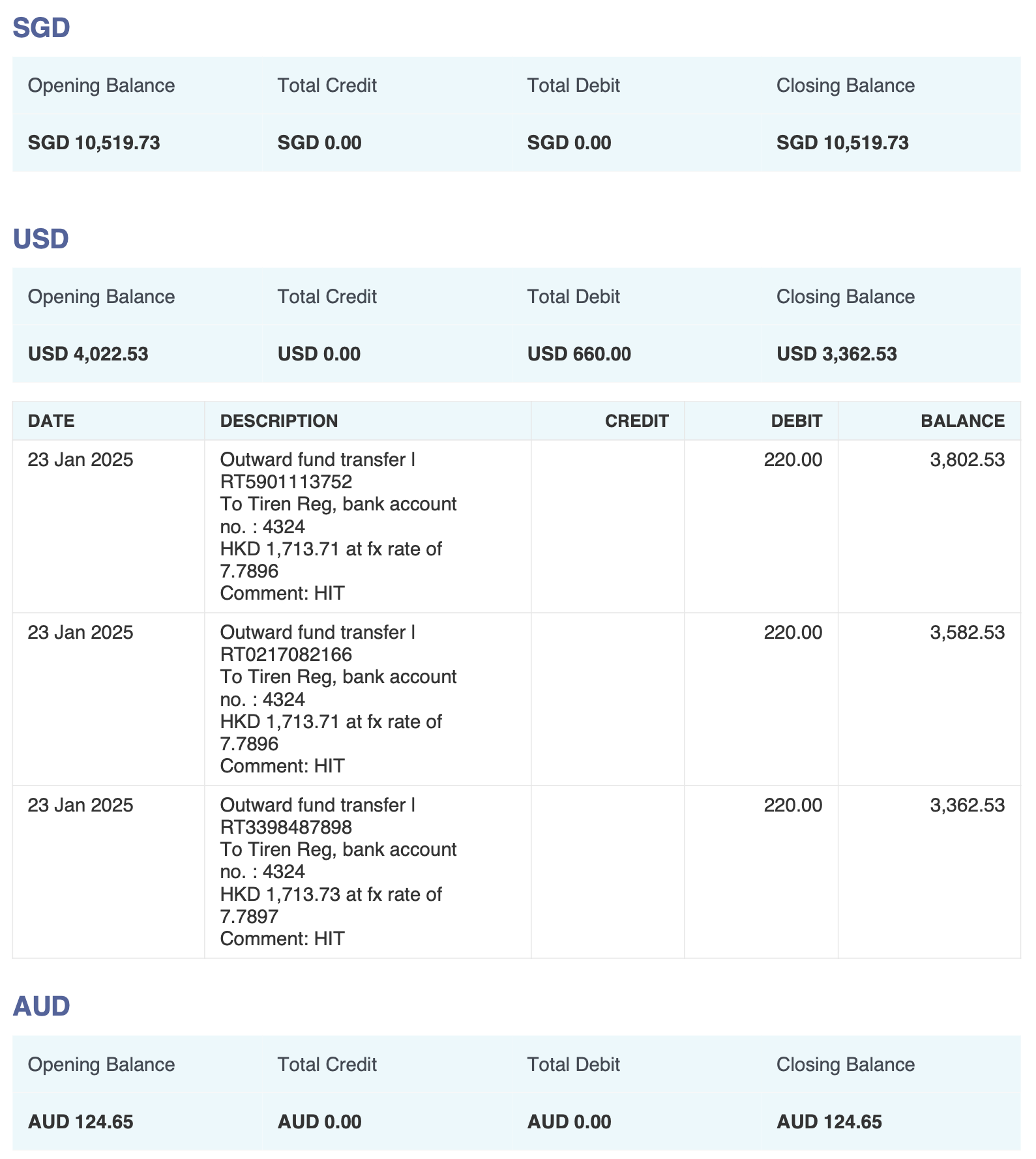
Each transaction entry includes a DESCRIPTION column, providing details about the transaction. These details help you understand where funds were sent or received, how currency conversions were applied, and any additional transaction metadata.
| DESCRIPTION in Statement | Description | Example |
|---|---|---|
Outward fund transfer | RT########## |
| Outward fund transfer | RT5901113752 |
To name, bank account no.: #### |
| To Tiren Reg, bank account no. : 4324 |
<Ccuntry code> <amount> at fx rate of <FX rate> | Transaction currency, amount, and foreign exchange rate used for currency conversion. | HKD 1,713.71 at fx rate of 7.7896 |
Comment: <comment> | Displays any remarks or notes added to the transaction for record-keeping or reconciliation purposes. | Comment: HIT |
Next steps
The Reports in Nium Portal are powerful tools designed to help you streamline your financial management processes. Whether you're tracking transactions or automating crucial finance reporting, Reports in Nium Portal provides the insights and control you need to manage finances effectively.
For more information on the details in the different reports, and how to generate them using our API, see Reports.